Google Sheets Formulas
average-and-median
How to Use MEDIAN Function in Google Sheets
SHARE THIS Article
In this article, you will learn how to use the MEDIAN formula in Google Sheets.
This function is beneficial when you need to get the middle of a set of data. The median is the middle number in a list of figures. It is the point above and below which each half of the data is spread equally.
How to use the MEDIAN formula in Google Sheets
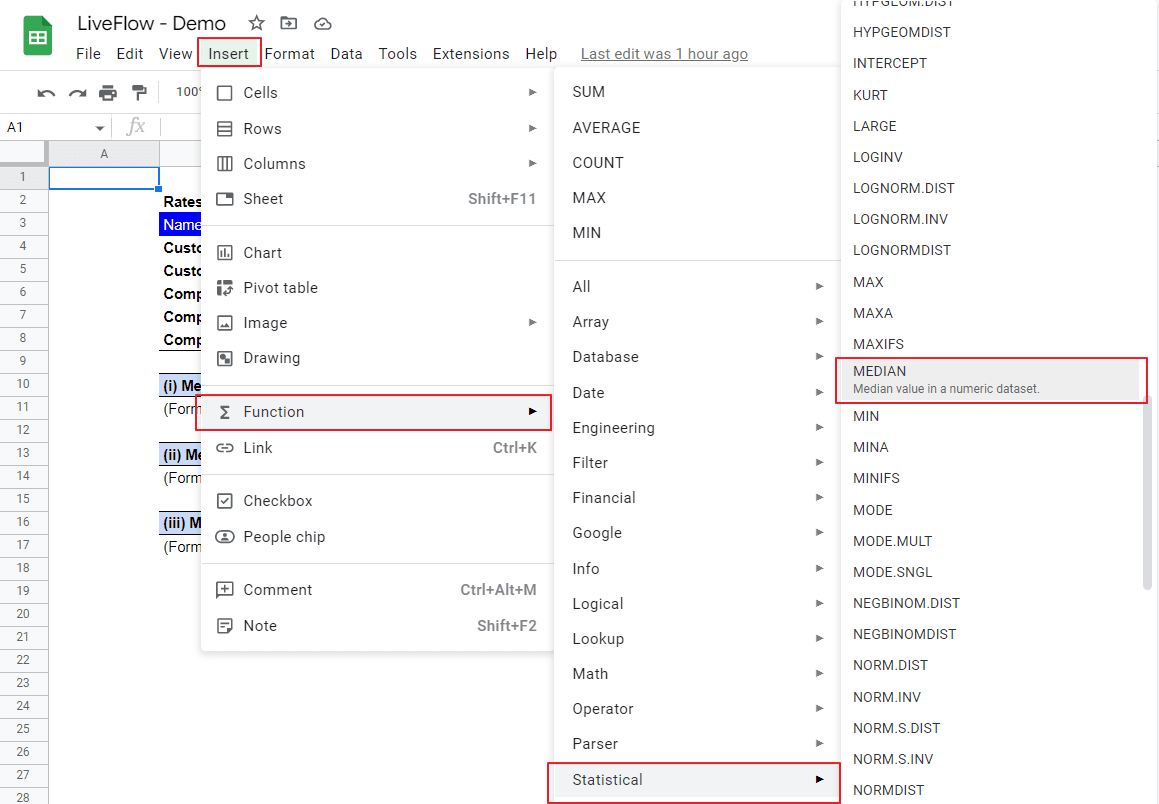
Type “=MEDIAN” or go to “Insert” in the menu bar➝“Function”➝”Statistical”➝”MEDIAN”
Select a set of data in which you want to find the median. If you want to incorporate non-adjacent areas, you can include them by punctuating them with a comma(s).
Press the “Enter” key.
Why spend hours creating spreadsheets, when we have already done the work for you?
100+ financial spreadsheet templates, all free and ready for you now.
Free Spreadsheet Templates
The generic formula is as follows:
Value 1: A set of data based on which you want to figure out the median.
Let’s see some examples. Imagine you review five customers’ rates given to four types of products:
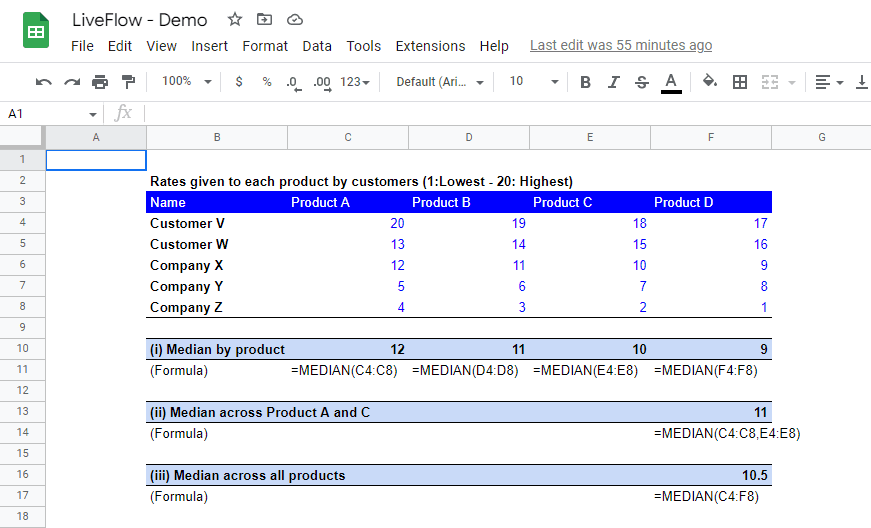
(i) Median by product
This is very simple. You can just select a part of the column for each product. For example, the MEDIAN formula in cell C10 (for Product A) contains a range of C4:C8, specifically 20,13,12, 5, and 4.
(ii) Median across Product A and C
This example might be a little tricky. As we mentioned above, if you want to select non-adjacent fields as a data set, you can use a comma(s). Select a part of the column for Product A (C4:C8), add a comma, and select a part of the column for Product C (E4:E8).
(iii) Median across all products
As you can see in the screenshot, you can select a table as a set of data which include twenty figures for all product.
How do you find the mean of data in Google Sheets?
You can use the AVERAGE function to find the arithmetic mean. Refer to How to Use AVERAGE Formula in Google Sheets to learn how to use the AVERAGE formula.
Turn Quickbooks Online data into a Google Sheets dashboard
100+ templates, update automatically, totally secure!
Book a Demo
Supercharge your financial reporting