Google Sheets Tips
none
How to Tag Someone in Google Sheets
SHARE THIS Article
In this article, you will learn how to notify someone of your comments in Google Sheets.
The function is helpful when you work with other collaborators on a Google spreadsheet as it makes your communication with others clear and efficient.
How to tag someone in your comments or assignments
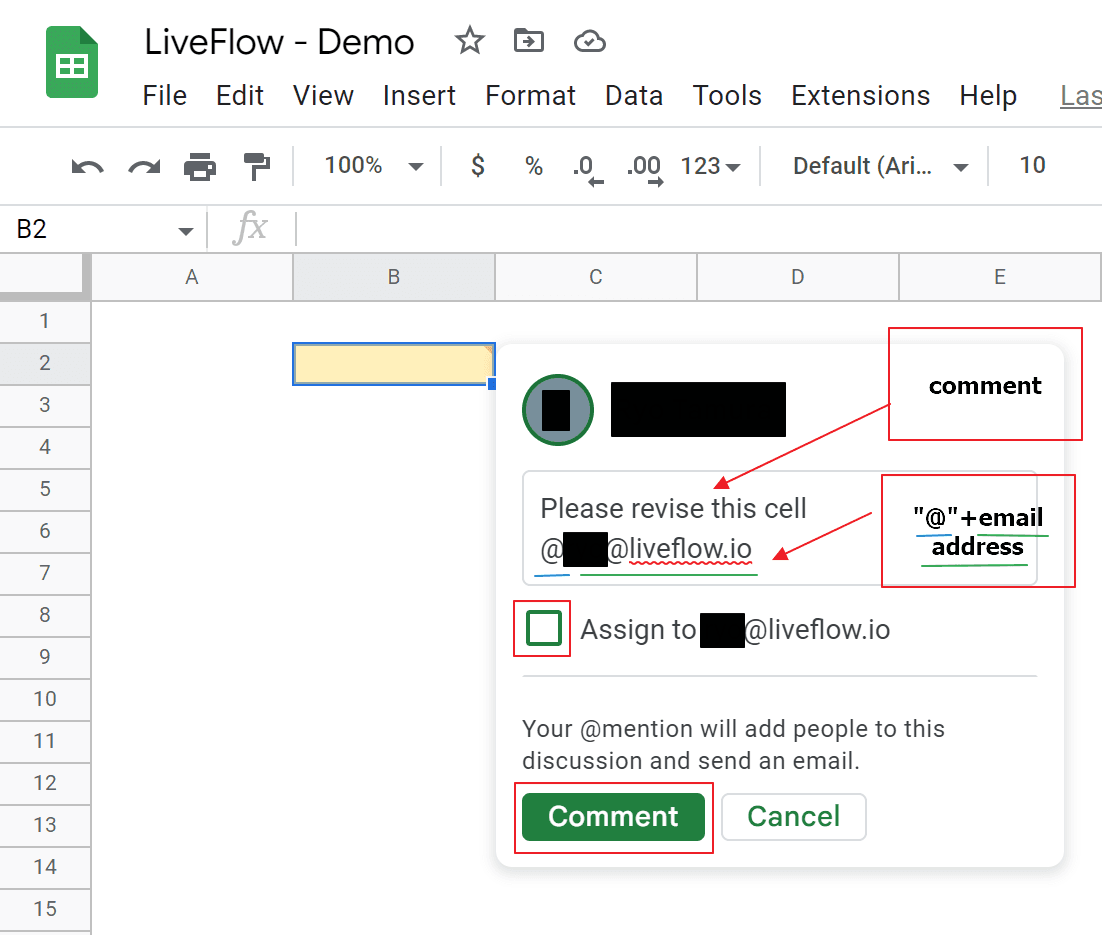
Right-click and select “Comment” or press “Ctrl”+”Alt”+M” (for Windows) or “⌘” + “Option” + “M” (for Mac) to open a pop-up window.
Before or after leaving comments, Input “@” mark, and then pick up a name from the name list showing up, or enter an email address directly.
Check the checkbox next to the message “Assign to abc@xyz.com” if you want to make it an assignment. (See below note regarding the difference of the “Comment” and “Assign”
Press the “Comment” or “Assign” button at the bottom left.
Note:
A tagged person receives a notification at his email address mentioned in a comment.
The “Comment” function and “Assign” function work similarly, though the “Assign” makes it clearer who is in charge of a task. The difference is that you can leave a comment without assigning the comment to anyone, whereas you can’t add an assignment without tagging anyone.
You can tag more than one person in a comment or an assignment.
Don’t forget to give a person access right to a file as Google Sheets does not give access to the file to the person automatically even if he or she is tagged in the document.
Why spend hours creating spreadsheets, when we have already done the work for you?
100+ financial spreadsheet templates, all free and ready for you now.
Free Spreadsheet Templates
How to close the thread in a comment box
Once you or your collaborator complete the task or a discussion is resolved, you want to close the thread. Here is how to do it.
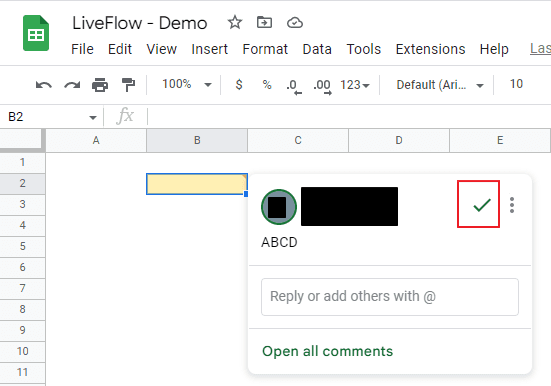
Put your cursor on the cell including a comment thread you want to end
Click the check mark at the top right corner of the window
The thread is saved in the comment history
How to see the comment history in Google Sheets
The comment history is the communication records with your collaborators via the comment function. Check this article to learn how to use and leverage the comment history.
The world's top businesses trust LiveFlow to automate their financial reporting
We turn Quickbooks Online data into a live FP&A dashboard in Sheets FAST!
Book a Demo
Supercharge your financial reporting