Excel Tips
none
How to Rename Tabs in Excel (Learn 3 Easy Methods)
SHARE THIS Article
In this article, you will be introduced to 3 easy methods to rename worksheets in Excel.
Why do Excel worksheets need to be renamed?
When a new tab is added to Excel, the tab name will appear as ‘SheetX’ (where X corresponds to the tab number).
It is important to rename tabs to clearly distinguish between them, especially in large Excel workbooks used by multiple users. If a workbook contains multiple tabs, it is ideal for the user to distinguish between tabs based on the tab names.
For example: If an Excel workbook contains sales volumes split by months across 12 spreadsheets, each sheet can be renamed to denote the month to which its data corresponds.
How to rename tabs in Excel?
Worksheets in Excel can be renamed using any of the 3 methods described below:
Method 1: Select the tab -> Right-click and select the ‘Rename’ option -> Enter the name -> Press ‘Enter’ on the keyboard
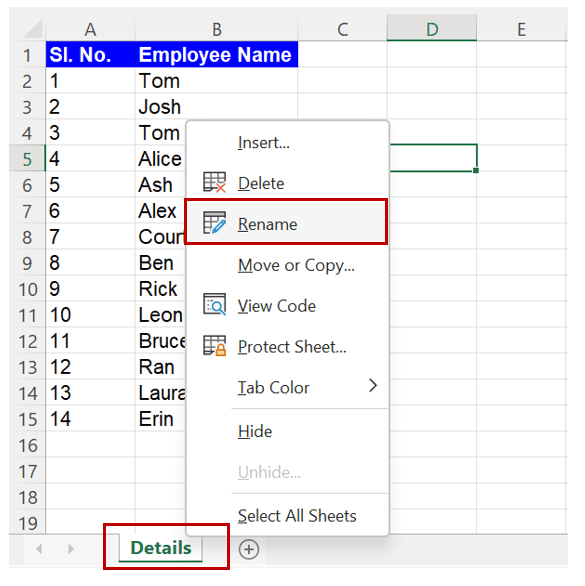
Method 2: Double-click on the tab name -> Enter the name -> Press ‘Enter’ on the keyboard
Method 3: Select the tab -> Press “ALT”, “H”, “O”, “R” -> Enter the name -> Press ‘Enter’ on the keyboard. This method is applicable only for Windows users.
Can multiple worksheets be renamed together in Excel?
No, multiple tabs can’t be selected and renamed together in Excel. Each sheet name within an Excel workbook should be unique.
Analyze your live financial data in a snap in Google Sheets
Are you learning this formula to visualize financial data, build a financial model, or conduct financial analysis? In that case, LiveFlow may help you automate manual workflows, update numbers in real-time, and save time. You can access various financial templates on our website, from the simple Income Statement to Multi-Currency Consolidated Financial Statement. Are you interested in this product but are an Excel user? That’s not a problem at all. You can connect Google Sheets to Excel quickly.
To learn more about LiveFlow, book a demo.

You can learn about other Excel and Google Sheets formulas and tips that are not mentioned here on this page: LiveFlow‘s How to Guides
Supercharge your financial reporting