Google Sheets Tips
none
How to Add a Comment to a Cell in Google Sheets
SHARE THIS Article
In this article, you will learn how to insert a comment in Google Sheets.
A comment includes functions such as tagging someone or giving someone a task in addition to a text message. Check this article to learn those additional functions.
How to attach a comment to a cell in Google Sheets
With shortcut
Select a cell in which you want to insert a note.
Press “Ctrl”+”Alt”+M” (for Windows) or “⌘” + “Option” + “M” (for Mac), which brings up a text box.
Type texts in the text box.
Without shortcut -1
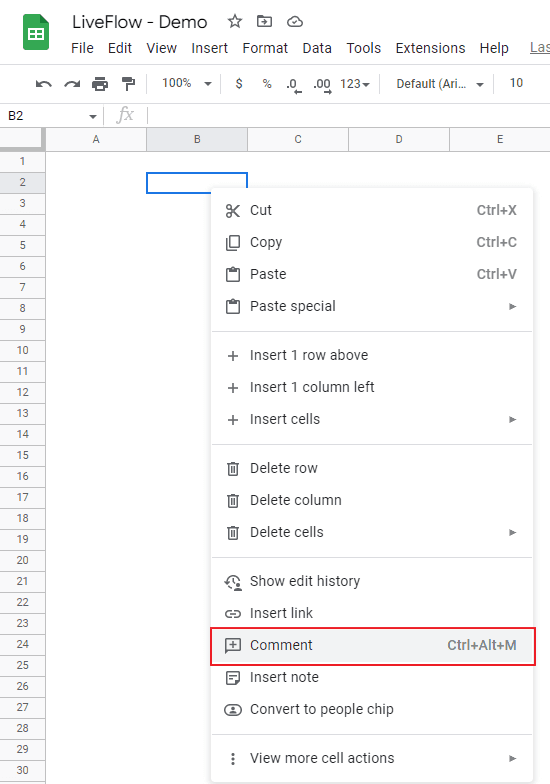
Select a cell in which you want to insert a note.
Right-click → “Comment”.
Type texts in the text box.
Save hours formatting your next financial spreadsheet!
100+ templates, all free to use.
Free Spreadsheet Templates
Without shortcut - 2
Select a cell in which you want to insert a note.
Click “Insert comment” icon in the menu bar or navigate to the “Insert” tab → “Comment”.
Type texts in the text box.
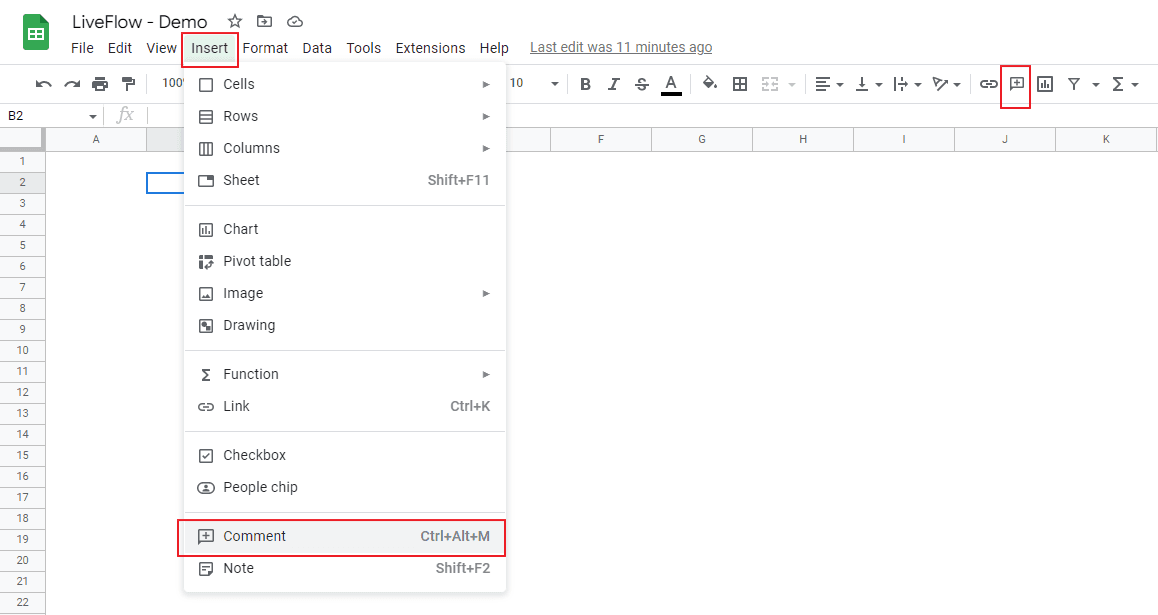
You see a small yellow triangle at the top right corner of the cell if the note is inserted successfully.
How to edit or remove an existing comment in Google Sheets
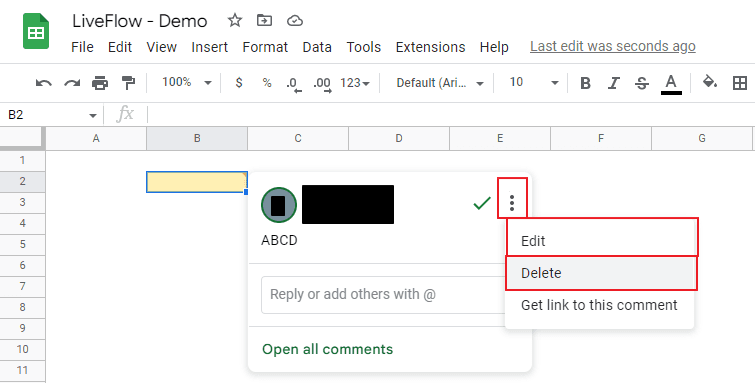
Hover your cursor above the cell incorporating the comment you want to change or delete.
Click the three dots icon at the top right corner of the comment box.
Choose “Edit” or “Delete”.
Learn Sheets for financial analysis today!
LiveFlow Academy teaches you the basics for free. Certificates available!
Enroll in LiveFlow Academy
What's the difference between a comment and a note in Google Sheets?
A comment and a note are common in that both of them can leave some texts in a text box. However, a comment is functionally superior to a note. The difference between a comment and a note is as follows: with a comment, you can
tag someone;
assign a comment as a task to someone;
tell who left the comment
reply to a comment another collaborator left; and
check previous interaction
In conclusion, you can use the two functions well depending on your purpose.
How do you add a note to a cell?
Check this article to learn how to add a note to a cell in Google Sheets.
Learn how LiveFlow can save you hours a month on financial reporting!
Just 30 minutes can change the way your business operates forever.
Book a Demo
Supercharge your financial reporting