Google Sheets Tips
fundamentals
Change Theme in Google Sheets: Explained
SHARE THIS Article
In this article, you will learn how to change your theme in Google Sheets.
What is the theme in Google Sheets?
The theme in Google Sheets is a set of colors and fonts that can be applied to a document to give it a consistent, professional appearance. Themes can be pre-designed by Google, or you can create your custom themes. Note that when you change the theme, it affects an entire file.
How to select another theme from the templates in Google Sheets
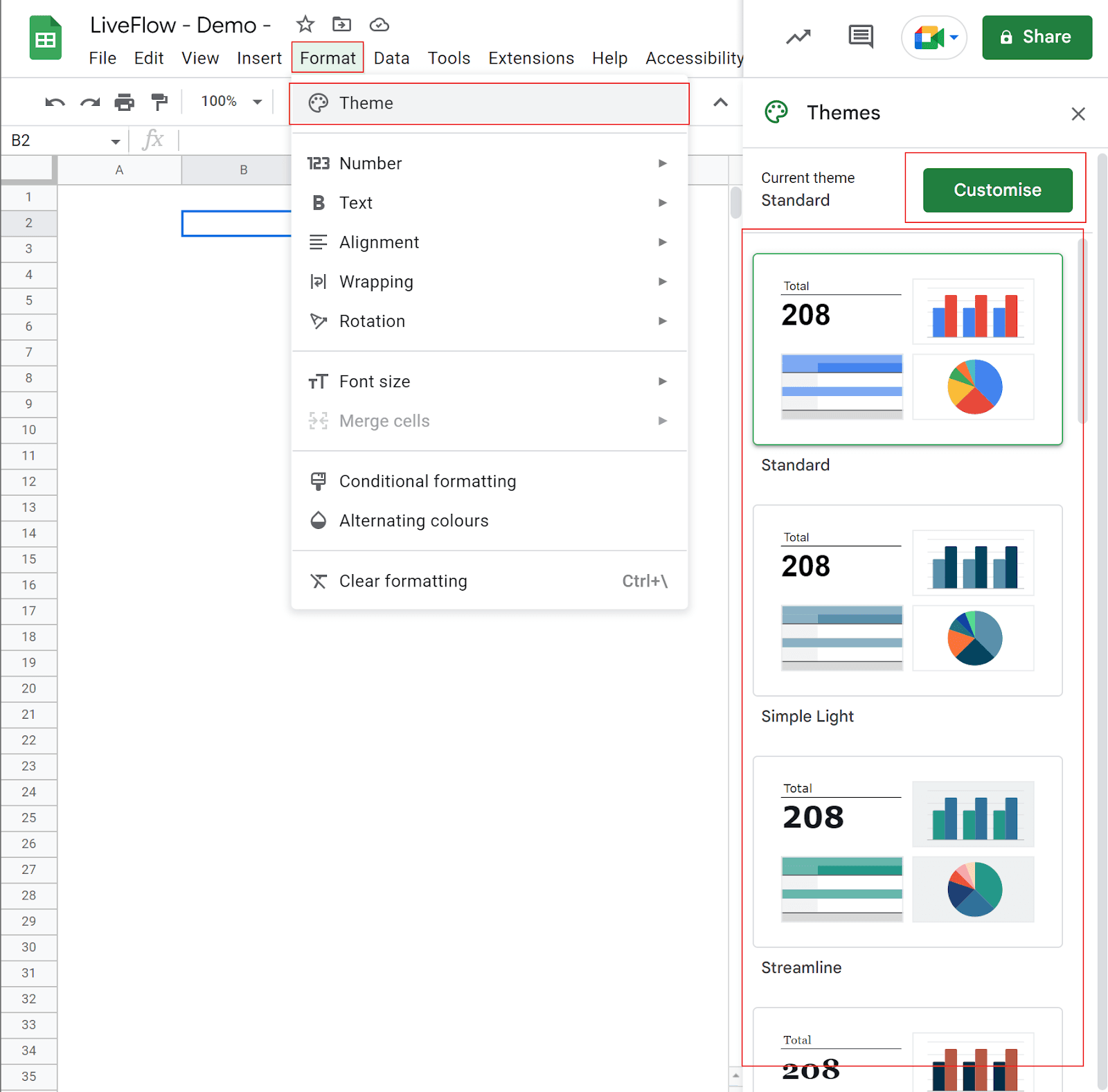
To change the theme of a Google Sheets document by selecting one of the existing templates prepared by Google Sheets, follow these steps:
Open the Google Sheets document you want to modify.
Click the "Format" option in the top menu.
From the drop-down menu, select the "Theme" option.
This will open the theme selection window on the right side, where you can choose from various pre-designed themes or create your custom theme.
Simply click on the theme you want to use. The theme will be applied to your document automatically.
Save hours formatting your next financial spreadsheet!
100+ templates, all free to use.
Free Spreadsheet Templates
Next, learn how to create a customized theme in Google Sheets.
How to add a customized theme in Google Sheets
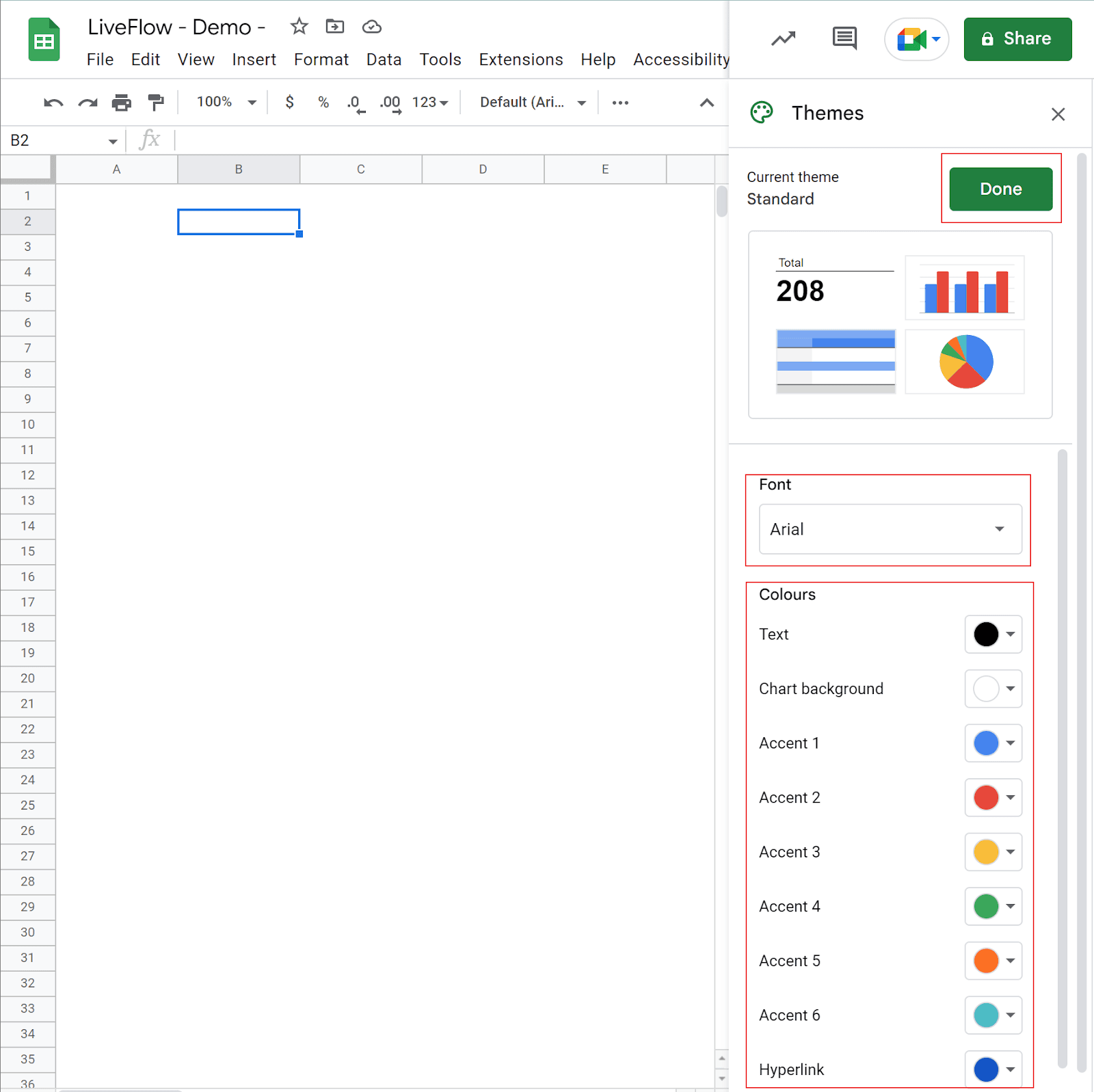
To customize the theme of a Google Sheets document, follow these steps:
Open the Google Sheets document you want to modify.
Click the "Format" option in the top menu.
Then, navigate to “Theme”.
Click the "Customise" button at the top right corner of the pop-up menu.
Choose the font style and the font colors for various items. For font colors, you can make fine adjustments if you can’t find your favorite colors in the pre-fixed color pallet.
Press the “Done” button at the top right corner once you have finished your font and color selections.
The selected style is automatically applied to the entire file.
Turn Quickbooks Online data into a Google Sheets dashboard
100+ templates, update automatically, totally secure!
Book a Demo
Supercharge your financial reporting