Google Sheets Formulas
operators
How to Find a Square Root with SQRT Function in Google Sheets
SHARE THIS Article
In this article, you will learn how to use the SQRT formula in Google Sheets. This formula helps you find a square root of a number easily and quickly.
How to use the SQRT function in Google Sheets
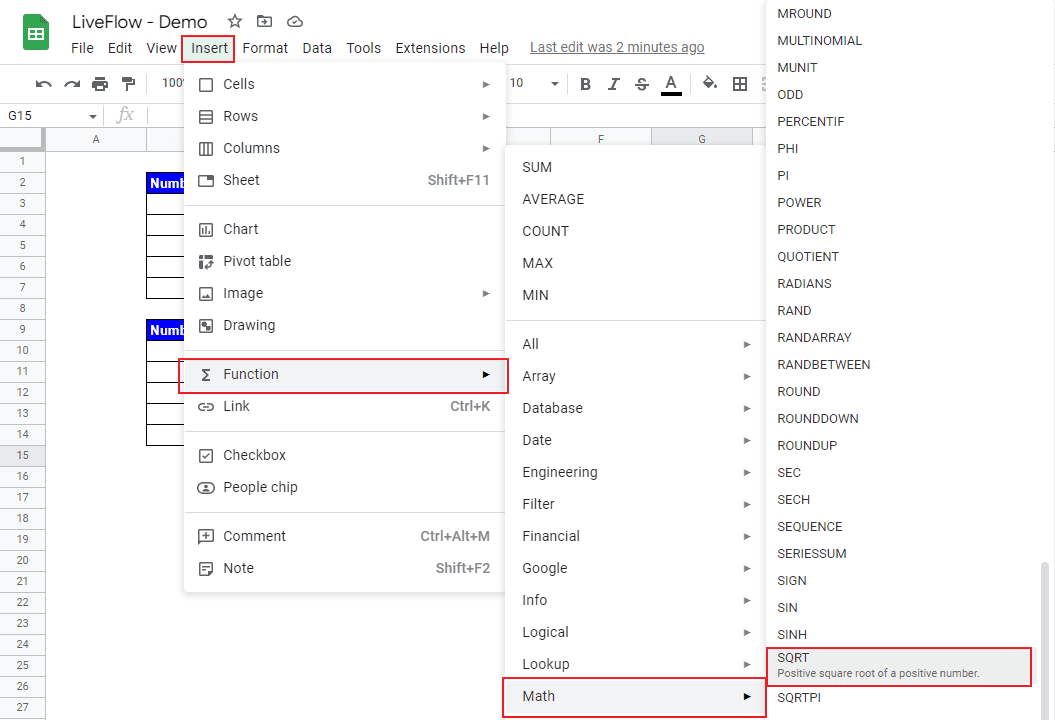
Type “=SQRT(” or go to “Insert” → ”Function” → ”Math” → ”SQRT”.
Input a number, a cell, a range of cells, or a formula, for the total of which you want to find a square root.
The generic formula is as follows:
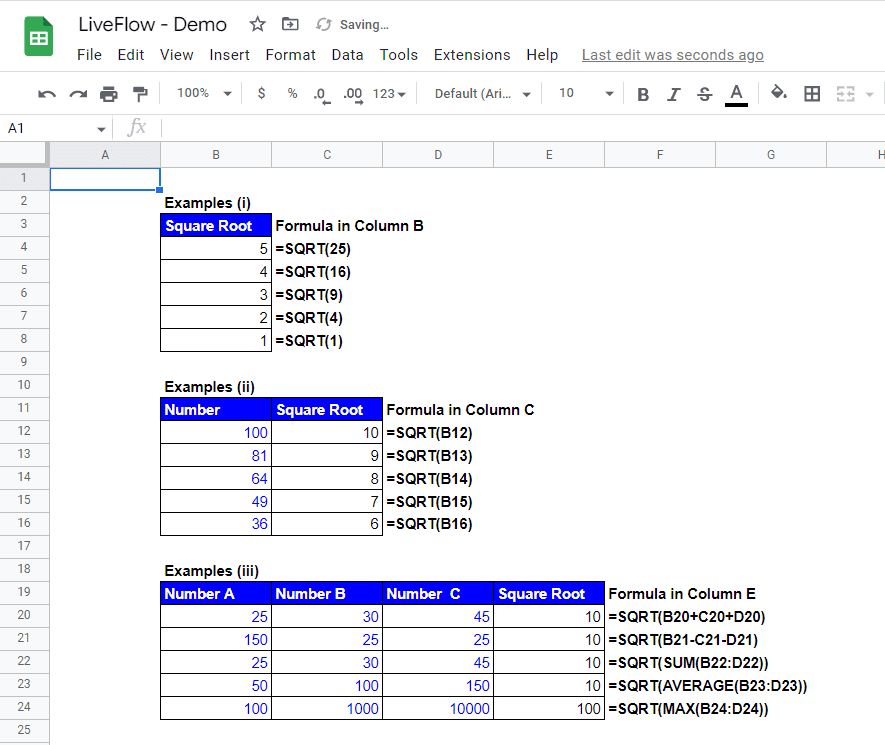
Let’s see some examples in the screenshot below. The Examples (i) show what SQRT formulas look like if they contain a number manually input. In Examples (ii), you can see formulas including single-cell references.
You can understand how to incorporate a formula(s) and/or a combination of cell references in the SQRT function in Example (iii). We recommend you use cell references shown in Examples (ii) and (iii) because
Save hours formatting your next financial spreadsheet!
100+ templates, all free to use.
Free Spreadsheet Templates
How do you do math formulas in Google Sheets?
Check this article to learn how to do basic math calculations in Google Sheets: How to Do Math in Google Sheets
How do you put a negative square root in Google Sheets?
You can get a negative square root by multiplying -1 by a result of the SQRT function. For example, if you want to find a negative square root of 25, the formula could be “=-1*SQRT(25)”.
How do I square a number in Google Sheets?
Check this article to learn how to use the POWER formula in Google Sheets, where you see not only how to square a number but also how to compute X to the power of N by using a formula: How to Use POWER Function in Google Sheets
Turn Quickbooks Online data into a Google Sheets dashboard
100+ templates, update automatically, totally secure!
Book a Demo
Supercharge your financial reporting