Excel Tips
How to Add Indent to Text in Excel?
SHARE THIS Article
In this article you will learn how to add indentation to your text in excel.
What do you mean by indentation of text in Excel?
Indentation refers to the space between the left or right margin of a paragraph and the beginning of the text. It is a typographical technique used to create a visual hierarchy within written or printed material, making it easier to read and follow.
Indentation can be achieved by adding blank spaces or using a tab to move the text away from the margin. In general, indentation is considered an important aspect of professional typesetting and formatting, as it can help to create a polished and organized appearance for the text.
What are some situations where indentation of text is useful?
In Excel, indentation can be used to visually distinguish between different levels of data or categories in a worksheet. For example, you might use indentation to create a hierarchy of data that includes main categories, subcategories, and individual data points. Indenting data in Excel can be useful in several ways:
Organizing data: Text indenatation can help you organize your data by creating a hierarchy. You can indent cells to create sub-levels, which makes it easier to read and understand complex data sets.
Grouping: Indenting can help you group related data together. By indenting cells, you can create groups that are visually distinct from other data sets.
Calculations: Indentation of text can also be used to perform calculations clearly. For example, you can indent cells that contain subtotals to visually indicate that they are part of a larger calculation.
Formatting: Indenting can also be used to improve the overall formatting of your worksheet. By indenting cells, you can create a more visually appealing layout that is easier to read and understand.
Overall, indenting data in Excel can help you to organize, structure, and visualize your data in a way that makes it easier to work with and understand.
How to indent text in Excel?
To indent text in Excel, follow these steps:
Step 1: Select the cell or cells that contain the text you want to indent.
Step 2: Click on the "Home" tab in the Excel ribbon.
Step 3: Look for the "Alignment" group, and then click on the "Increase Indent" button.
The text in the selected cells will be indented by one character position.
You can repeat step 3 to indent the text further. If you want to decrease the indent level, click on the "Decrease Indent" button in the "Alignment" group.
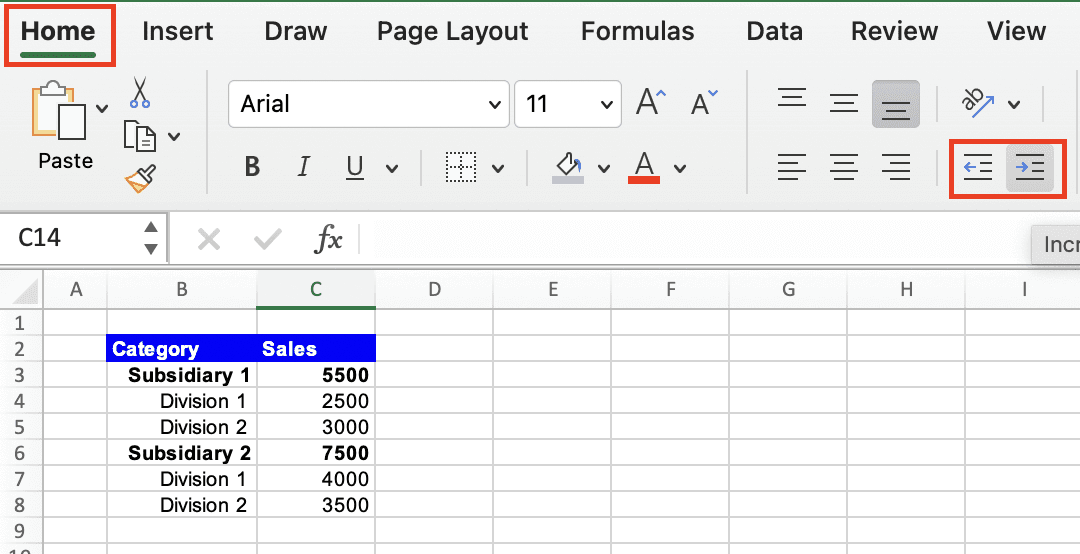
Alternatively, you can use the keyboard shortcuts to indent text in Excel. Press "Alt+H+6" to increase the indent level, and "Alt+H+5" to decrease the indent level.
Analyze your live financial data in a snap in Google Sheets
Are you learning this formula to visualize financial data, build a financial model, or conduct financial analysis? In that case, LiveFlow may help you automate manual workflows, update numbers in real-time, and save time. You can access various financial templates on our website, from the simple Income Statement to Multi-Currency Consolidated Financial Statement. Are you interested in this product but are an Excel user? That’s not a problem at all. You can connect Google Sheets to Excel quickly.
To learn more about LiveFlow, book a demo.

You can learn about other Excel and Google Sheets formulas and tips that are not mentioned here on this page: LiveFlow‘s How to Guides
Supercharge your financial reporting