Excel Formulas
reference
COLUMN Function in Excel: Explained
SHARE THIS Article
In this article, you will learn how to use the COLUMN function in Excel. The COLUMN function simply returns the column number of a particular cell.
What does the COLUMN formula in Excel do?
The "COLUMN" function in Excel is useful for returning the column number of a specified cell or range of cells. It can be used in various ways, some of which are:
Finding the column number: The COLUMN function can be used to find the column number of a cell reference. For example, =COLUMN(B4) will return the number 2, as the cell B4 is in the second column.
Conditional formatting: The COLUMN function can be used in conditional formatting to apply formatting based on the column number. For example, to apply a different background color to every other column, use the formula =MOD(COLUMN(),2)=0 in the conditional formatting rule.
Creating dynamic headers: The COLUMN function can be used in conjunction with the TEXT function to create dynamic headers. For example, =TEXT(COLUMN(A1),"MMMM") will return the full name of the current month in the cell containing the formula, and this formula can be dragged across columns to update the header for each month.
How to use the COLUMN function in Excel
The syntax for the COLUMN function in Excel is as follows:
Reference: is the cell for which you want to find the column number
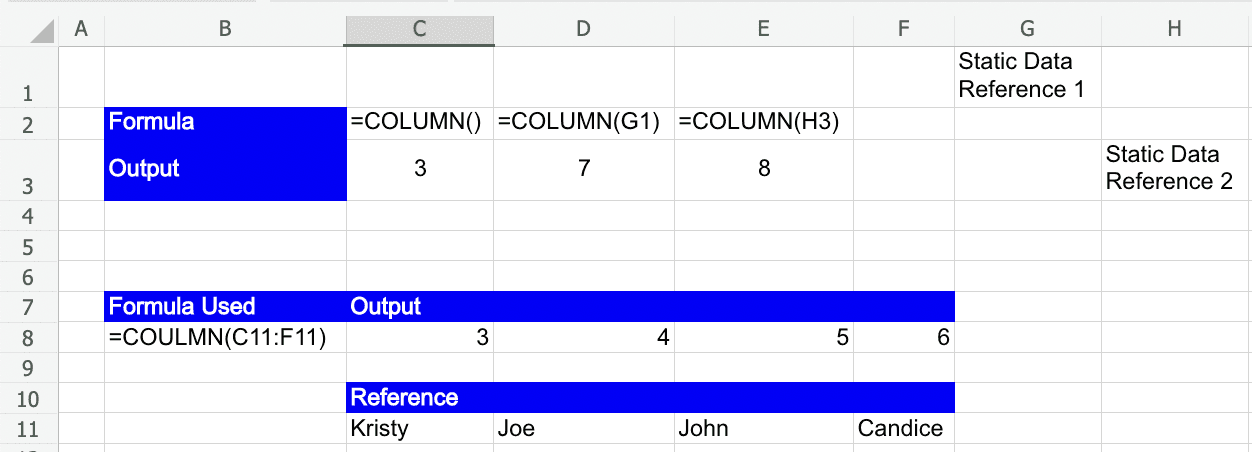
Note 1: The argument "reference" is optional, and it specifies the cell or range of cells for which you want to return the column number. If you don't specify a reference, Excel will assume that you want to return the column number for the cell in which the formula is located.
Note 2: If you input an array as “reference”, the COLUMN function gives you the column numbers of the array as a horizontal array. So, ensure you horizontally have enough number of cells for the returned values.
Note 3: The “reference” argument can’t be multiple ranges
Some examples where COLUMN formula has been used are as follows
Analyze your live financial data in a snap in Google Sheets
Are you learning this formula to visualize financial data, build a financial model, or conduct financial analysis? In that case, LiveFlow may help you automate manual workflows, update numbers in real-time, and save time. You can access various financial templates on our website, from the simple Income Statement to Multi-Currency Consolidated Financial Statement. Are you interested in this product but are an Excel user? That’s not a problem at all. You can connect Google Sheets to Excel quickly.
To learn more about LiveFlow, book a demo.

You can learn about other Excel and Google Sheets formulas and tips that are not mentioned here on this page: LiveFlow‘s How to Guides
Supercharge your financial reporting