Excel Formulas
isxyz
ISODD and ISEVEN Formulas in Excel: Explained
SHARE THIS Article
In this article you will learn how to use the ISODD and ISEVEN functions in Excel.
What do the ISODD and ISEVEN functions in Excel do?
The ISODD function is a logical function in Excel that tests whether a given numeric value is odd or not. It returns the logical value "TRUE" if the number is odd and "FALSE" if the number is even.
Alternatively, the ISEVEN formula is a complementary function that tests whether a given number is even or not. It returns TRUE if the number is even, and FALSE if it is odd.
What are the uses of the ISODD and ISEVEN formulas in Excel?
Some examples of how you can use the ISODD / ISEVEN function:
Highlighting odd / even numbers: You can use the ISODD function in combination with conditional formatting to highlight all odd numbers in a range or vice versa.
Filtering even numbers: You can use the ISEVEN function in combination with the Filter function to filter all even numbers in a column.
Conditional calculations: You can use the ISODD function as part of a larger formula to perform conditional calculations based on whether a number is odd or even.
How to use the ISODD and ISEVEN functions in Excel?
The syntaxes for using the ISODD and ISEVEN formulas in Excel are as follows:
'number' is the value or cell reference that you want to test if it is odd or not.
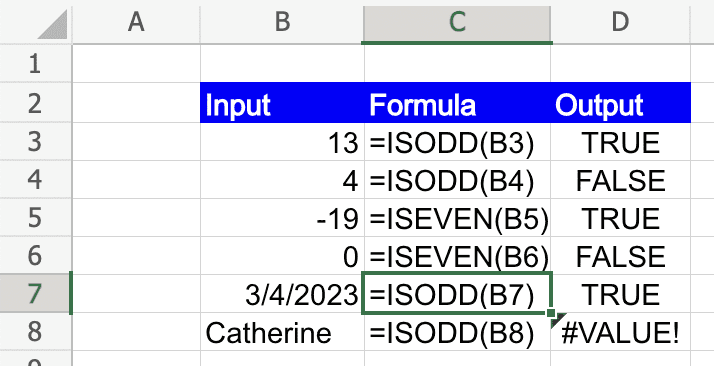
Note: The ISEVEN / ISODD functions only work with numeric values. If the argument is not a numeric value, the function will return the #VALUE! error.
Analyze your live financial data in a snap in Google Sheets
Are you learning this formula to visualize financial data, build a financial model, or conduct financial analysis? In that case, LiveFlow may help you automate manual workflows, update numbers in real-time, and save time. You can access various financial templates on our website, from the simple Income Statement to Multi-Currency Consolidated Financial Statement. Are you interested in this product but are an Excel user? That’s not a problem at all. You can connect Google Sheets to Excel quickly.
To learn more about LiveFlow, book a demo.

You can learn about other Excel and Google Sheets formulas and tips that are not mentioned here on this page: LiveFlow‘s How to Guides
Supercharge your financial reporting