Google Sheets Tips
none
How to Insert a Note in Google Sheets
SHARE THIS Article
In this article, you will learn how to attach a note to a cell in Google Sheets.
A note inserted in a cell is helpful to notify your collaborators of what they need to care about when they look at the cell.
How to add a note to a cell in Google Sheets
With shortcut
Select a cell in which you want to insert a note.
Press “Shift”+”F2”, which brings up a text box.
Type texts in the text box.
Click somewhere outside of the text box.’
Without shortcut -1
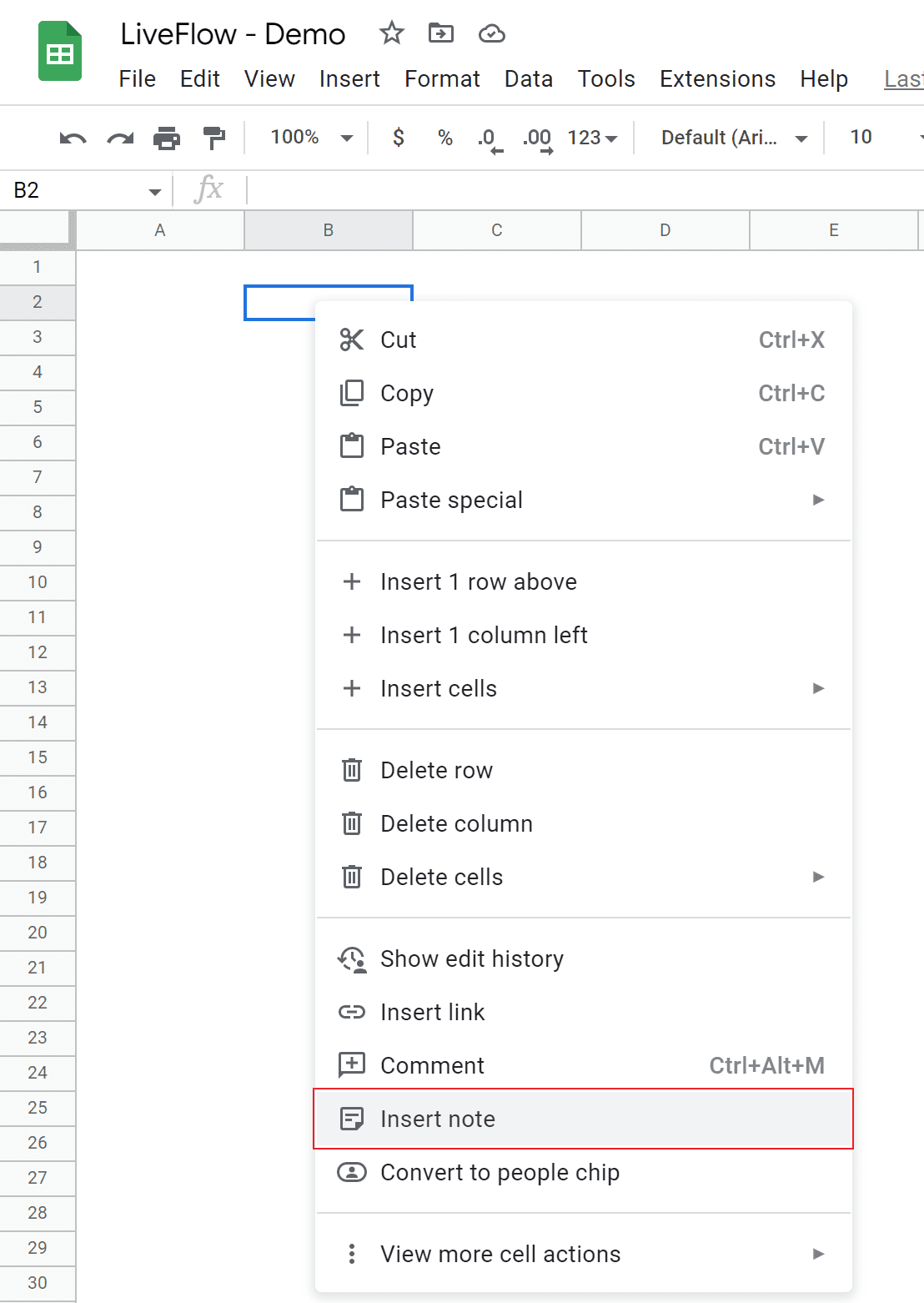
Select a cell in which you want to insert a note.
Right-click → “Insert note”.
Type texts in the text box.
Click somewhere outside of the text box.
Without shortcut - 2
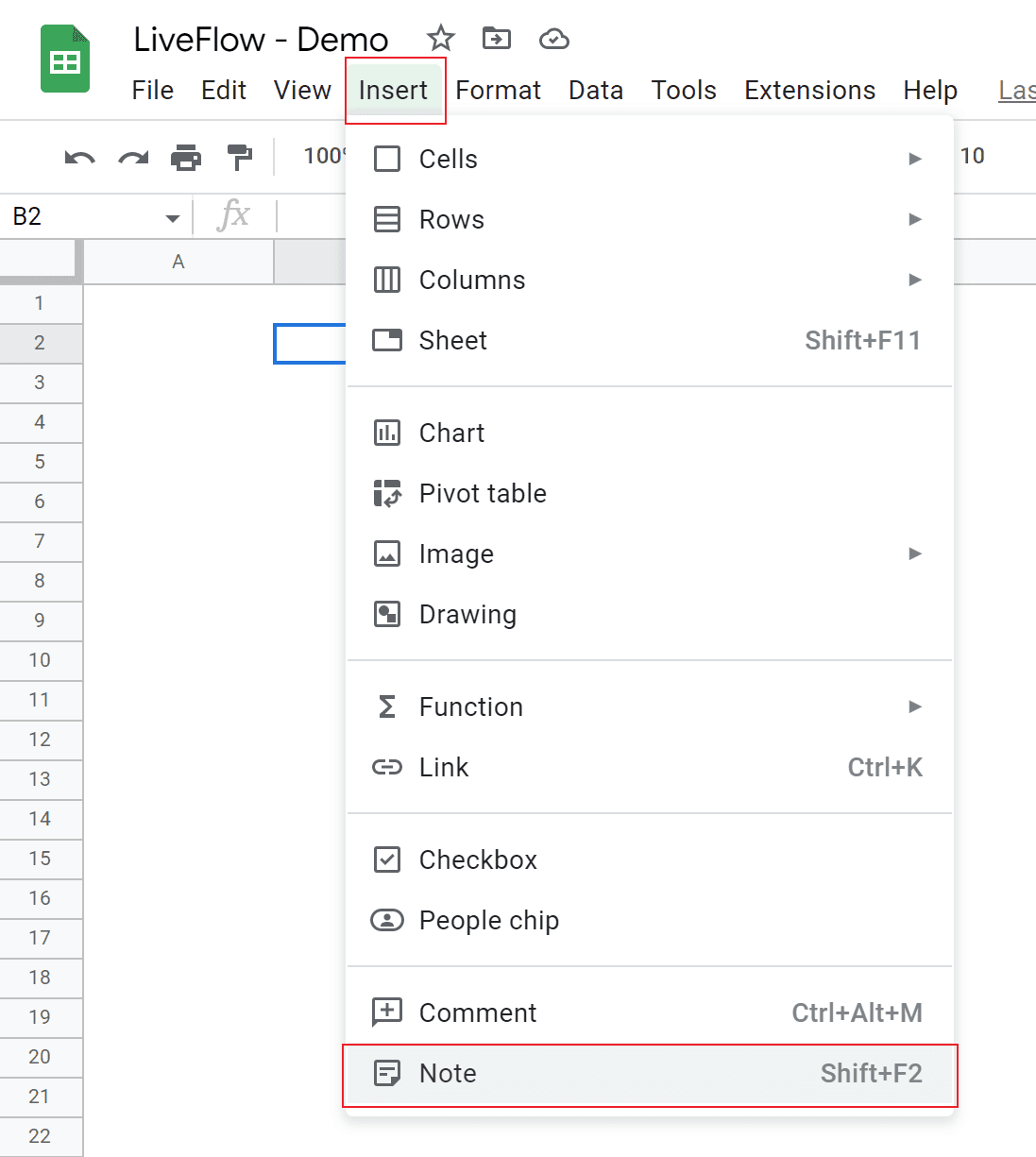
Select a cell in which you want to insert a note.
Navigate to the “Insert” tab → “Note”.
Type texts in the text box.
Click somewhere outside of the text box.
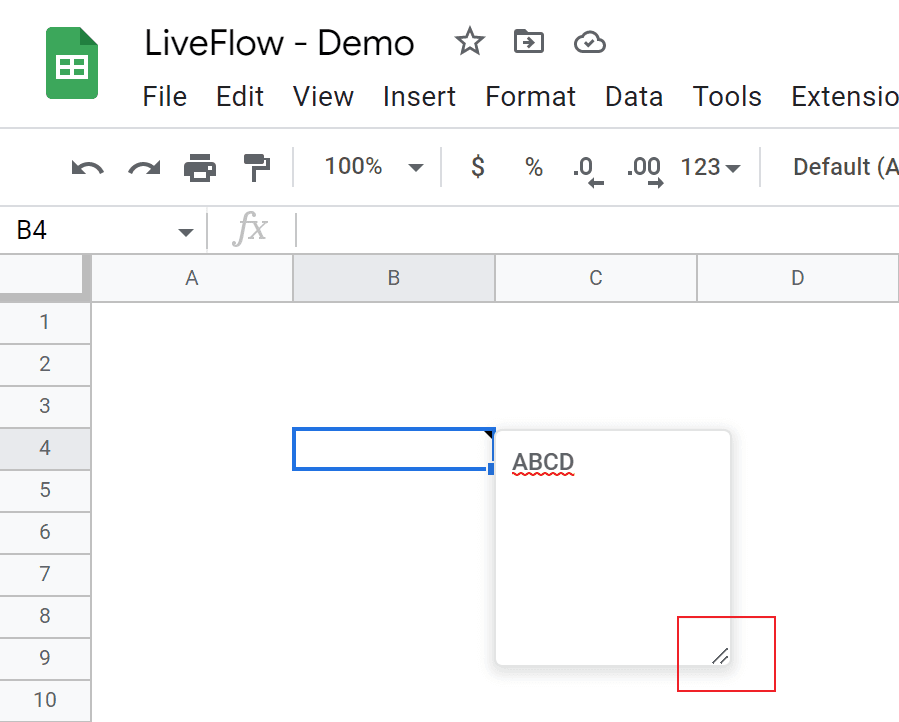
You see a small black triangle at the top right corner of the cell if the note is inserted successfully.
Why spend hours creating spreadsheets, when we have already done the work for you?
100+ financial spreadsheet templates, all free and ready for you now.
Free Spreadsheet Templates
How do you show a note in Google Sheets?
It is very simple. The note automatically pops up when you hover or put your cursor on a cell containing a note.
How to edit an existing note in Google Sheets
You can edit an existing note by double-clicking the cell containing the current note. If you want to expand the text box, left-click the stripe at the bottom right of the text box and drag it until you get enough space for your texts.
How to delete a note in Google Sheets
Method 1
Double-click the cell including the note you want to remove.
Delete all texts in the text box
Click somewhere outside of the text box.
Method 2
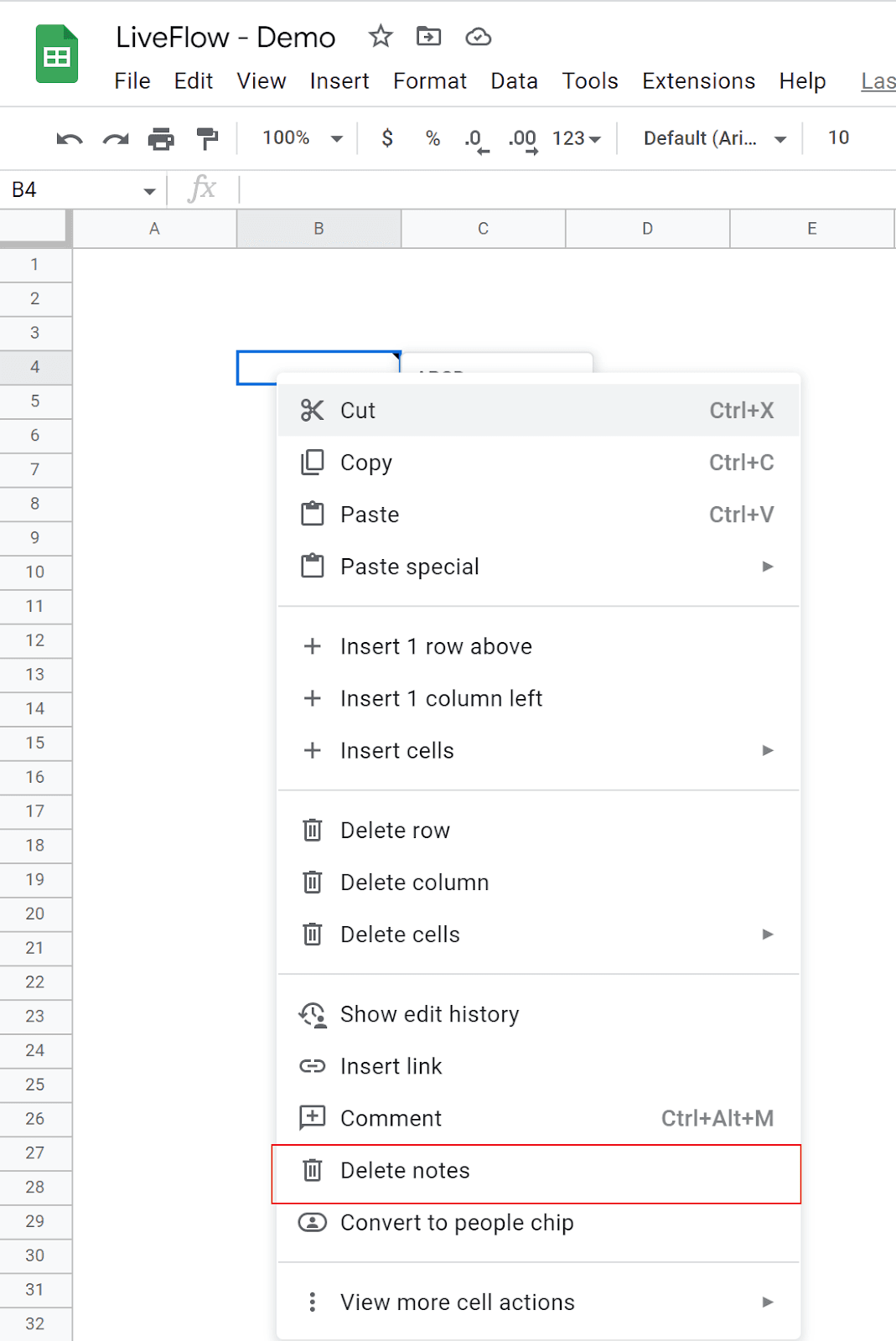
Right-click on a cell with a note, which brings a pop-up menu.
Select “Delete notes“.
What's the difference between a comment and a note in Google Sheets?
A comment and a note are common because both can leave some texts in a text box. However, a comment is functionally superior to a note. The difference between a comment and a note is as follows: with a comment function, you can
tag someone;
assign a comment as a task to someone;
tell who left the comment
save a thread in the comment history
re-open a saved conversation if necessary
reply to a comment another collaborator left; and
check previous interaction
In conclusion, you can use the two functions well, depending on your purpose.
How do I add a comment to a cell in Google Docs?
Check this article to learn how to attach a comment to a cell in Google Sheets.
Learn how LiveFlow can save you hours a month on financial reporting!
Just 30 minutes can change the way your business operates forever.
Book a Demo
Supercharge your financial reporting