Google Sheets Tips
none
How to Insert Multiple Columns in Google Sheets
SHARE THIS Article
In this article, you will learn how to add multiple columns in Google Sheets.
(Note: Some of the shortcuts below may not work for all keyboards.)
How to add columns in Google Sheets
With shortcuts - 1
Press “Ctrl” and then “Space” to select the entire column next to which you want to insert additional columns.
While holding “Shift” down, press “→” or “←” one time less than the number of columns you need to insert (e.g., two times for three additional columns).
Press “Ctrl”+”Alt”+“=” (for Windows) or “⌘” + “Option” + “=” (for Mac) to insert the columns to the left.
With shortcuts - 2
Select as many cells in a row as the number of columns you want to insert.
Press “Alt”+”Shift”*+“I” together and then “C” (for Windows) or “Ctrl” + “Option” + “I”, then “C” (for Mac) to insert columns to the left of the cells
Press “Alt”+”Shift”*+“I” and then “O” (for Windows), or “Ctrl”+“Option”+“I”, then “O” (for Mac) to insert columns to the right of the cells
*If you use Google Chrome, you don’t need to press “Shift” at this step.
Without shortcuts
Select an entire column by clicking column index X (e.g., E).
While pressing “Shift”, click another column index Y (e.g., G).
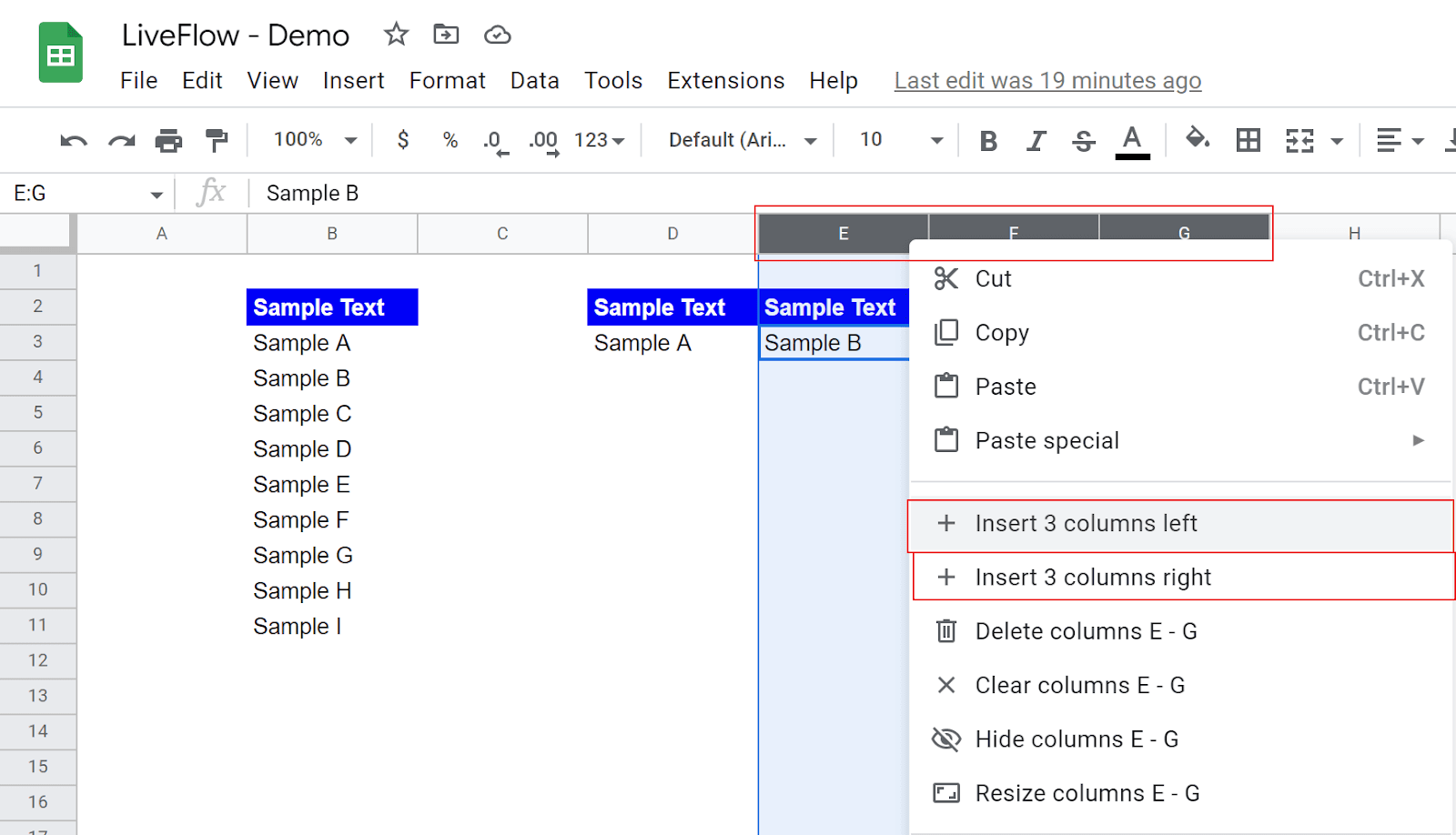
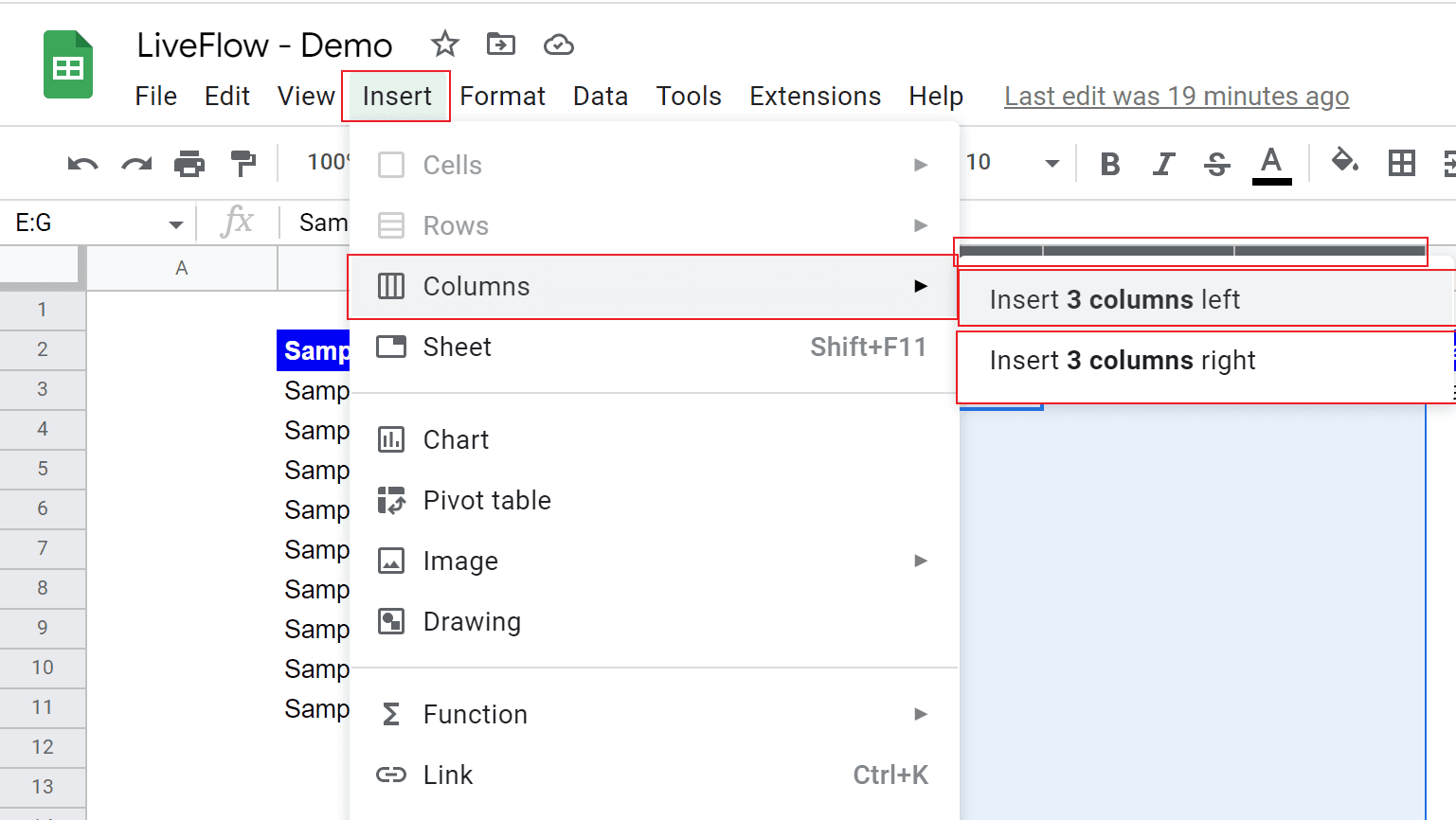
Right-click or go to the “Insert” tab → “Columns”, and select if you insert Z (e.g., 3) columns to the left or the right.
The following two screenshots are for Step 3 of “Without shortcuts”.
Save hours formatting your next financial spreadsheet!
100+ templates, all free to use.
Free Spreadsheet Templates
How do I remove columns in Google Sheets?
With shortcuts - 1
Press “Ctrl” and then “Space” to select the leftmost or rightmost column in the columns you want to delete.
While holding “Shift” down, press “→” or “←” and select all columns you want to remove (we assume they are adjacent).
Press “Ctrl”+”Alt”+ “-” (for Windows) or ”⌘” + “Option” + “-” (for Mac).
With shortcuts - 2
Select at least one cell in each column in the range you want to delete. (e.g., cell E3 to cell G3 if you're going to delete column E to G).
Press “Alt”+”Shift”*+“E” and then “E” (for Windows) or “Ctrl”+“Option”+“E”, then “E” (for Mac)
Select “Delete column X-Y”.
*If you use Google Chrome, you don’t need to press “Shift” at this step.
Without shortcuts
Select the leftmost or rightmost column in the columns you want to delete by clicking the column index X (e.g., E).
While pressing “Shift”, click another column index Y (e.g., G) at the end of the range to be removed.
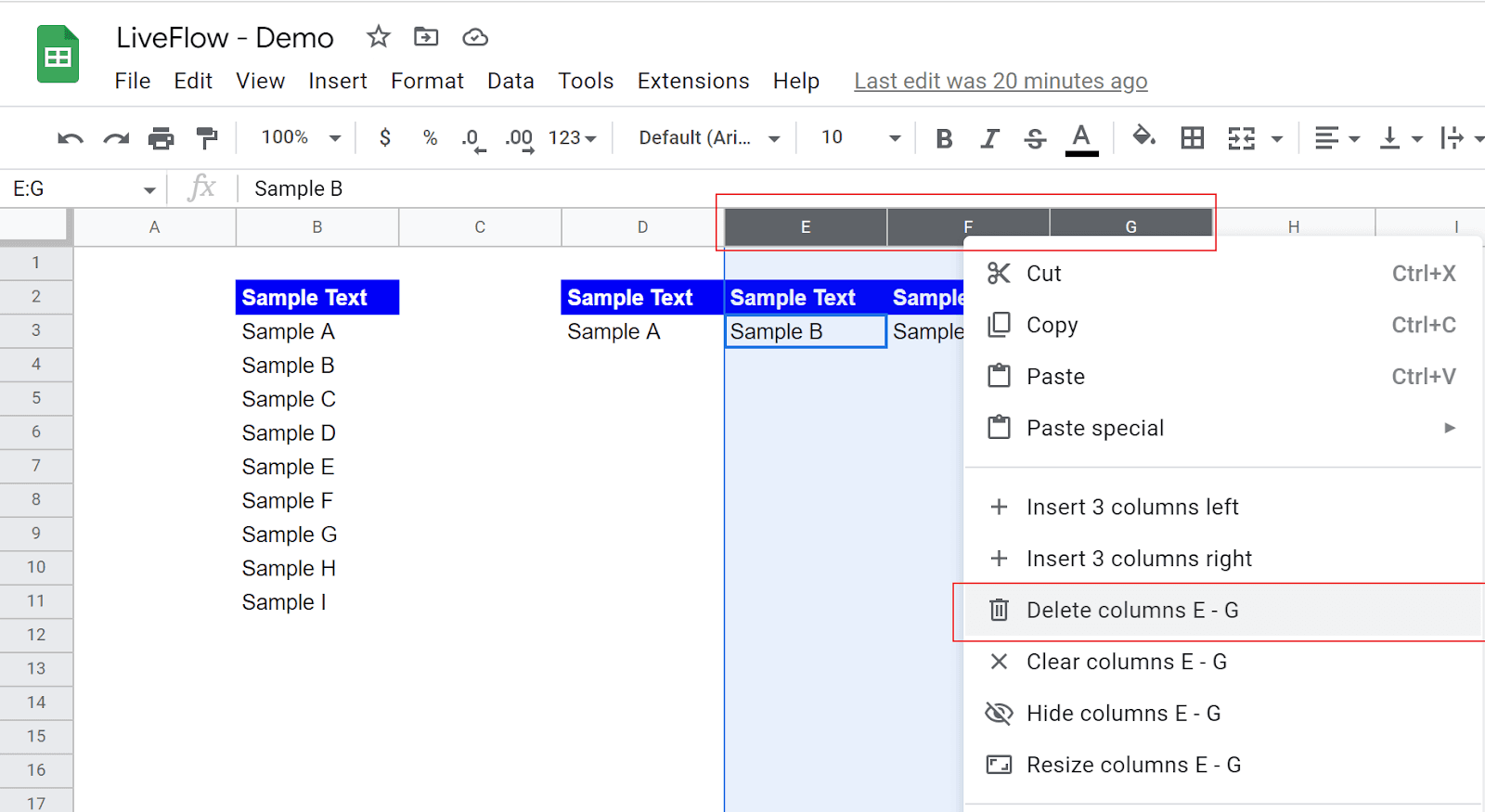
Right-click and click “Delete columns X-Y” (e.g., Delete columns E-G”).
The picture below is for Step 3 of “Without shortcuts”.
Turn Quickbooks Online data into a Google Sheets dashboard
100+ templates, update automatically, totally secure!
Book a Demo
Supercharge your financial reporting