Google Sheets Tips
none
How to Rename a Sheet in Google Sheets
SHARE THIS Article
This article will teach you how to change a sheet name in Google Sheets.
Why do you need to rename a tab in Google Sheets?
Renaming a tab in Google Sheets can be useful for several reasons:
Clarity: Renaming tabs can make it easier to identify and find specific sheets within a spreadsheet.
Organization: Renaming tabs can help you to better organize your spreadsheet. For instance. For instance, you can give tabs certain names, such as XYZ Division - Group A, XYZ Division - Group B, and XYZ Division - Group C. By doing this, everyone can see these sheets containing information relevant to XYZ Division.
Collaboration: If you are working on a spreadsheet with other people, renaming tabs can make it easier to communicate and collaborate.
Cloning: When you duplicate a sheet in Google Sheets, it automatically gets a name like "Copy of Sheet1". Renaming tabs can help you to differentiate between these copied sheets and avoid confusion and miscommunication.
Save hours formatting your next financial spreadsheet!
100+ templates, all free to use.
Free Spreadsheet Templates
How to rename a sheet in Google Sheets
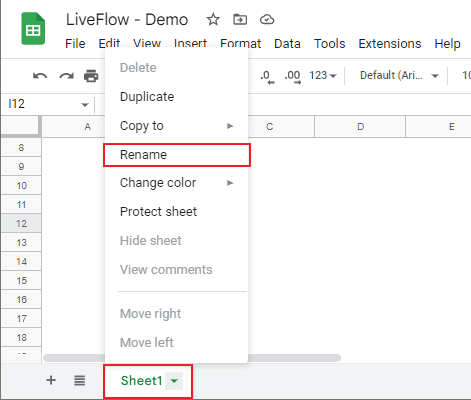
Go to a sheet tab at the bottom of a sheet. The default name is “Sheet1” for the first sheet.
Right-click the current sheet name, and you can see a pop-up menu, as shown in the screenshot below.
Choose “Rename,” and you can edit a text box for a sheet name.
Input a new sheet name and press Enter key.
Sheets tutorials availalble now in our free certificate program!
Learn basic and intermediate functions with digestible videos and instructions.
Enroll in LiveFlow Academy
How do I rename and save a Google sheet?
Do you want to know how to rename a Google sheet file? It is not difficult at all.
Go to How to Rename a Google Sheet File and check the steps you need to take.
How do you rename multiple sheets in Google Sheets?
Unfortunately, you can’t change the names of multiple sheets simultaneously.
So, you need to change each sheet’s name one by one. Also, you should be aware that you can’t use the same sheet name in a Google Sheet.
The world's top businesses trust LiveFlow to automate their financial reporting
We turn Quickbooks Online data into a live FP&A dashboard in Sheets FAST!
Book a Demo
Supercharge your financial reporting